Table of Contents
ToggleFinding the Target: Host Discovery and Port States
Introduction
In Part 1 of this Nmap tutorial series, you built a legal, isolated lab environment a Kali Linux attacker VM and a Metasploitable target VM, both installed on the same host-only or NAT-isolated network and learned the TCP/IP fundamentals that make Nmap‘s scanning techniques possible. It’s time to put that lab to work and run your first real Nmap scan.
Before you can enumerate services, detect operating systems, or run vulnerability scripts, you need to answer a much more basic question: what’s actually alive on this network? That’s the job of host discovery, and it’s arguably the most underrated skill in a penetration tester’s toolkit. Skip it or do it poorly with your Nmap scan, and you’ll either miss targets entirely or waste hours scanning dead IP space. Do it well, and every later stage of your reconnaissance methodology becomes faster and more accurate. The quality of your Nmap scan results depends entirely on getting this first step right.
In this lesson, you’ll learn how Nmap finds live hosts using both ping sweeps and ARP scanning, why one is dramatically faster than the other on local networks, and how to correctly read the three port states, open, closed, and filtered – that form the backbone of every Nmap scan result you’ll interpret for the rest of this course. By the end, you’ll be running Nmap scan commands with confidence and actually understanding what they’re telling you.
Mapping Your Local Network
Host discovery is the reconnaissance phase where you identify which IP addresses on a given range actually correspond to live systems, before spending time and packets probing their ports. Nmap supports several discovery techniques, and choosing the right one depends heavily on whether your target is on the same local network segment or reachable only across a router. The first decision you make before any Nmap scan is which discovery method to use.
Ping Sweeps vs. ARP Scanning
Ping sweeps work at Layer 3 (Network) of the OSI model. Traditionally associated with ICMP echo requests, Nmap‘s ping sweep actually uses a combination of probe types by default (ICMP echo, a TCP SYN packet to port 443, a TCP ACK packet, and an ICMP timestamp request) to maximize the chance of a response even when ICMP itself is blocked. This makes it effective across routed networks, including scanning targets that aren’t on your local subnet. A well-executed Nmap scan with -sn can quickly map a remote network’s live hosts.
ARP scanning, by contrast, works at Layer 2 (Data Link) and only functions on your local network segment. Because ARP (Address Resolution Protocol) is how devices on the same subnet resolve IP addresses to MAC addresses, it’s a required part of local communication — every live host must respond to a legitimate ARP request, regardless of firewall rules on higher layers. This is why ARP scanning is dramatically more reliable than ping sweeps for local discovery: a host firewall can silently drop ICMP packets, but it generally cannot opt out of answering ARP without breaking its own network connectivity. When you run an Nmap scan with -PR, you’re leveraging this fundamental fact.
When to use which:
| Scenario | Recommended Technique |
|---|---|
| Scanning your local lab subnet (same network segment) | ARP scan (-PR) — fastest and most reliable for your Nmap scan |
| Scanning a remote or routed network | Ping sweep (-sn, default probes) |
| Target has a host firewall blocking ICMP | ARP scan (local) or TCP-based ping probes (remote) |
| You want to minimize Nmap scan noise | -sn alone, without following up with port scans |
On the isolated lab network you built in Part 1, both your Kali and Metasploitable VMs sit on the same subnet, so ARP scanning is the technique you’ll rely on most in this lesson, and it’s what Nmap will default to automatically when it detects you’re targeting a local Ethernet network. Understanding this behavior helps you interpret why your Nmap scan results look the way they do
Decoding Port States: Open, Closed, and Filtered
Once you move beyond host discovery into actual port scanning (which you’ll do more of starting in Part 3), Nmap classifies every probed port into one of several states. Understanding these precisely, rather than just glancing at the word next to the port number is what separates a beginner reading Nmap scan output from someone who can actually reason about what a target’s network posture looks like. Every Nmap scan result is only as useful as your ability to interpret it.
Open: An application is actively listening on this port and accepted the connection attempt (or, in a SYN Nmap scan, responded with a SYN-ACK). This is a confirmed, running service.
Closed: The port is reachable, the host responded, but no application is listening. In a SYN Nmap scan, this shows up as an RST (reset) response. A closed port still tells you useful information: the host is alive and reachable at the network level.
Filtered: Nmap cannot determine whether the port is open or closed because a firewall, router, or other packet-filtering device is dropping the probe (or the response) without any reply at all. Filtered ports are the most ambiguous result from any Nmap scan and often the most operationally significant, since they usually indicate active filtering infrastructure standing between you and the target.
Unfiltered (seen in specific Nmap scan types like ACK scans): The port is reachable but Nmap can’t determine open/closed status.
Open|Filtered and Closed|Filtered: Combined states Nmap reports when it can’t distinguish between the two possibilities, typically due to a lack of response in Nmap scan types like UDP or FIN scans.
Table 1: TCP Scan Types Comparison — state interpretation varies by scan technique, a topic explored in depth in Part 3.
For now, the key takeaway is this: “closed” is still useful information, and “filtered” is not the same as “closed.” A beginner mistake is treating filtered ports as if they mean “nothing here”, in reality, filtered often means “something is actively deciding not to let you find out.” When you run an Nmap scan, filtered results should make you curious, not dismissive.
Key Concepts: Latency, MAC Vendor Identification, and CIDR Notation
Three supporting concepts will help you read Nmap‘s discovery output accurately:
Latency: The round-trip time between sending a probe and receiving a response, reported in seconds (e.g.,
0.0012s). Low latency values are typical for local network hosts; consistently high latency can indicate a remote, routed, or heavily loaded target. Your Nmap scan output includes this for every host.MAC Vendor Identification: Every network interface’s MAC address includes an Organizationally Unique Identifier (OUI), the first three octets which Nmap cross-references against a vendor database to tell you the hardware manufacturer (e.g., “PCS Systemtechnik GmbH” for VirtualBox virtual NICs, or “VMware, Inc.” for VMware). This is a quick way to distinguish real infrastructure from virtual machines, or to spot unexpected device types (like IoT hardware) on a network. Your Nmap scan results become much more valuable when you can identify what kind of device you’re looking at.
CIDR Notation: Classless Inter-Domain Routing notation (e.g.,
192.168.1.0/24) expresses an IP range compactly. The/24indicates a 24-bit network mask, meaning 256 addresses (192.168.1.0 through 192.168.1.255). Nmap accepts CIDR notation directly as a target specification, letting you scan entire subnets with a single Nmap scan command rather than listing individual IPs.
Discovering Live Hosts on Your Network
With your Kali Linux attacker VM and Metasploitable target VM both running on the isolated lab network from Part 1, you’re ready to run your first real discovery Nmap scan commands. As always: only scan the IP ranges within your own isolated lab network. Every Nmap scan in this lesson stays inside your controlled environment.
Step 1: Confirm Your Own Network Range
From your Kali VM, identify your own IP address and subnet:
ip a

Note the CIDR range for your lab’s virtual network adapter (commonly something like 192.168.56.0/24 for VirtualBox Host-Only networks). This is the range you’ll scan in the next step. Your Nmap scan will target this entire subnet.
Step 2: Run a Ping Sweep Across the Subnet
sudo nmap -sn 192.168.56.0/24
Command breakdown:
sudo– ensures Nmap has the privileges needed to send raw ICMP and ARP packets rather than falling back to slower, less reliable probing.-sn– “ping scan” / “no port scan.” This tells Nmap to perform host discovery only and skip port scanning entirely, dramatically speeding up the Nmap scan.192.168.56.0/24– the CIDR range representing your lab’s isolated subnet.
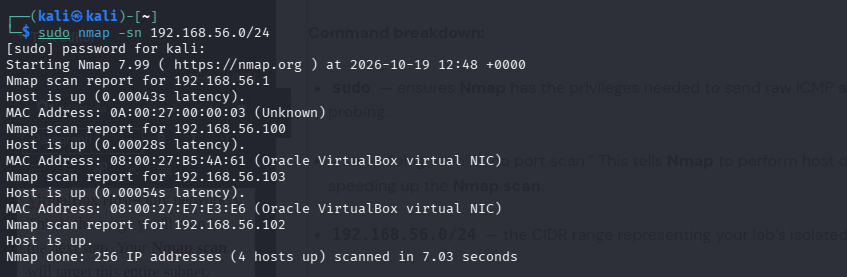
Reading the output: Two hosts responded, your Kali host adapter (.1) and your Metasploitable target (.103). The MAC vendor lookup confirms the target is a VirtualBox virtual machine, and the low latency values (sub-millisecond) confirm both hosts are local. Out of 256 possible addresses in the /24 range, only 2 responded, the rest of the range is simply unused address space in your lab. This simple Nmap scan just told you exactly what’s alive on your network.
Step 3: Run an Explicit ARP Scan for Local Discovery
Since your lab targets are on the same Ethernet segment, you can force Nmap to rely specifically on ARP requests, which is faster and more reliable than the default combined-probe ping sweep on local networks:
sudo nmap -PR -sn 192.168.56.0/24
Command breakdown:
-PR— explicitly selects ARP Ping as the discovery method for this Nmap scan. On local Ethernet networks, Nmap actually defaults to this behavior automatically even without the flag, but specifying it makes your intent explicit and is useful when troubleshooting discovery issues.-sn– again restricts the Nmap scan to discovery only, no port probing.
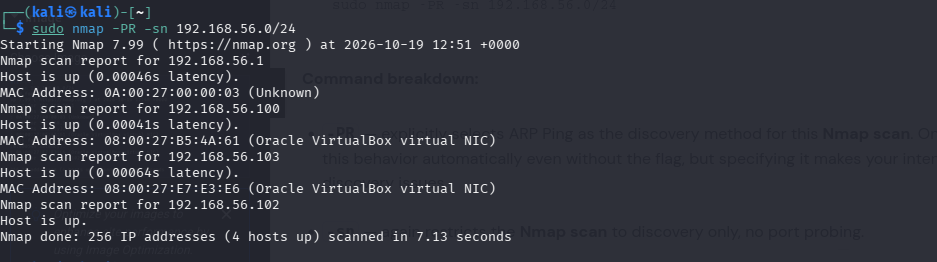
Why this matters: Because ARP operates below the IP layer, a host firewall configured to drop ICMP (a common hardening step) has no effect on ARP responses. If you ever find a ping sweep (-sn without -PR) reporting a host as down that you know is running, an ARP Nmap scan is often the fix — assuming the target is on your local segment. This is one of the most practical troubleshooting tips for any Nmap scan.
Step 4: Capture the Traffic in Wireshark
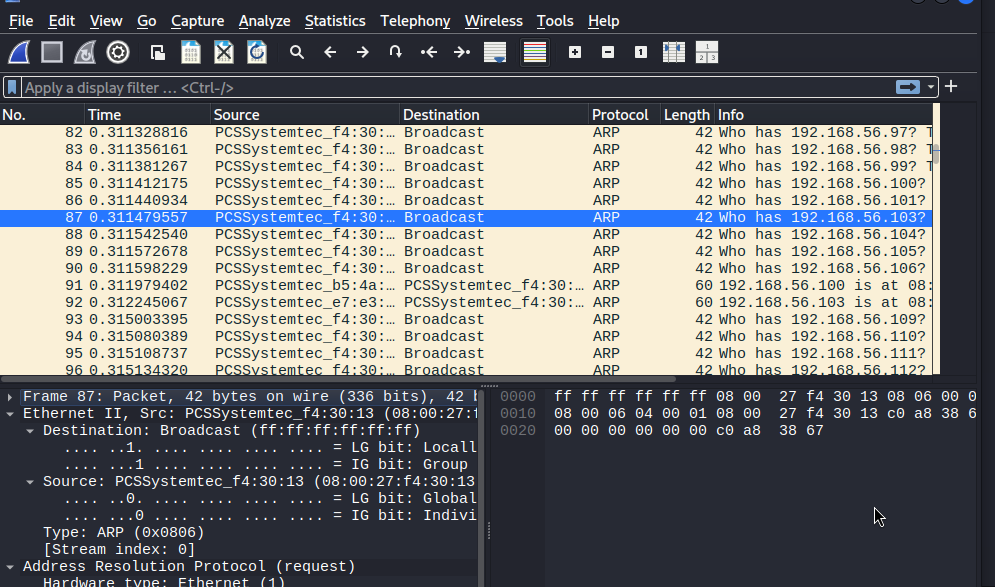
To see exactly what’s happening at the packet level during your Nmap scan, open Wireshark on your Kali VM, start a capture on the interface connected to your lab network, apply the filter arp, and re-run Step 3. You’ll see the raw ARP “who-has” requests Nmap sends for each address in the range, and the corresponding “is-at” replies from live hosts visual, packet-level proof of how ARP-based discovery actually works. Watching your Nmap scan in Wireshark is one of the best ways to truly understand what’s happening under the hood.
Common Mistakes
Scanning large ranges without parallelization awareness. Running a discovery Nmap scan against something as large as a /8 network (over 16 million addresses) without understanding Nmap‘s timing and parallelism controls can take an extremely long time, potentially days, and generates enormous amounts of network noise in the process. In a lab context, stick to ranges appropriately sized to your actual network (typically a /24 or smaller). Timing optimization is covered in depth in Part 4 of this Nmap series.
Treating “filtered” as “not present.” As covered above, a filtered port state from your Nmap scan means Nmap couldn’t get an answer — not that nothing is there. Conflating the two leads to inaccurate reporting and, in a professional engagement, could mean under-reporting a target’s actual attack surface. Always question filtered results from any Nmap scan.
Assuming a host is down after a single failed ping sweep. Some systems and networks legitimately block ICMP as a hardening measure, which will make a default -sn Nmap scan report a live host as “down” even though it’s fully reachable via TCP. Always cross-check with an alternate discovery method (ARP locally, or TCP-based probes remotely) before concluding a host is offline. One Nmap scan isn’t always enough.
Ready to put your knowledge to the test? The CISO Cyber Suite: Hands-On Executive Path offers an opportunity to strengthen your cybersecurity skills through practical, hands-on learning.
Key Takeaways
Nmap is a free, open-source network mapping tool that answers three core questions: what’s alive, what ports are open, and what services are running.
Host discovery answers “what’s alive?” before any port scanning begins, saving significant time and reducing unnecessary noise in every subsequent Nmap scan.
ARP scanning is the most reliable discovery method on local network segments because live hosts cannot opt out of answering ARP without breaking their own connectivity, making your Nmap scan results more accurate.
Ping sweeps use a mix of ICMP, TCP, and timestamp probes by default, making them more versatile across routed networks but more susceptible to firewall filtering that can skew your Nmap scan results.
The three core port states, open, closed, and filtered – carry distinct meanings; “filtered” is not the same as “nothing there” in any Nmap scan output.
CIDR notation lets you target entire subnets efficiently in a single Nmap scan, and MAC vendor lookups help quickly distinguish device types on a network.
Best Practices
Start every engagement with a host discovery Nmap scan, not a blind full-port scan — it establishes scope and saves time downstream.
Use
-snfor a low-noise, fast discovery sweep before committing to more intensive, deeper Nmap scan types.Prefer ARP scanning on local network segments in your Nmap scan; it’s faster and unaffected by host-level ICMP filtering.
Cross-verify “down” hosts with a second discovery technique before ruling them out, especially on networks with hardened firewall rules that might interfere with your Nmap scan.
Match your scan range to your actual scope. Scanning larger ranges than necessary wastes time and, in a real engagement, can raise unnecessary noise for defenders to investigate.
Conclusion
You’ve now moved from theory into practice: running real host discovery Nmap scan commands against your lab, understanding the mechanical difference between ARP scanning and ping sweeps, and — critically — learning to correctly interpret Nmap‘s open, closed, and filtered port states. You also now have a solid understanding of what Nmap actually is and why it’s been the industry standard for over two decades. These fundamentals underpin every Nmap scan you’ll run for the rest of this series. When you understand what your Nmap scan is actually telling you, you stop being someone who just runs commands and start being someone who understands networks.
In Part 3: Deep Enumeration — Identifying Services, Versions, and Vulnerabilities, you’ll build directly on this lesson, moving from “what’s alive” to “what’s running,” using service version detection, OS fingerprinting, and your first introduction to the Nmap Scripting Engine (NSE). Your Nmap scan results will get richer and more detailed with every part of this series.
FAQ
1. What is Nmap, and why is it important?
Nmap (Network Mapper) is a free, open-source tool for network discovery and security auditing. It’s important because it provides accurate, scriptable, low-level control over packet crafting and interpretation — making it the industry standard for reconnaissance since 1997. Every Nmap scan you run builds on this foundation.
2. What’s the difference between -sn and a regular Nmap scan?-sn performs host discovery only — determining which hosts are alive — without probing any ports. A regular Nmap scan (without -sn) performs discovery and then proceeds to scan ports on hosts found to be up.
3. Why did my ping sweep Nmap scan miss a host I know is online?
Most likely, the host’s firewall is dropping ICMP probes. Try an ARP Nmap scan (-PR) if the target is on your local network, or a TCP-based discovery probe if it’s remote.
4. Does ARP scanning work across the internet in an Nmap scan?
No. ARP is a Layer 2 protocol confined to a local network segment; it cannot cross routers. For remote hosts, Nmap automatically falls back to ping-sweep-style probing in your Nmap scan.
5. What does “closed” actually tell me if there’s no service running?
It confirms the host is alive and reachable at the network/transport layer, which is still valuable — it rules out “host is down” and narrows your picture of the target’s actual exposed services. Every detail in your Nmap scan output matters.
6. Is a filtered port a bad sign or a good sign for the person being scanned?
From a defensive standpoint, filtered ports generally indicate active firewalling — a positive security control. From an offensive standpoint, filtered results from your Nmap scan mean you’ll need additional evasion or enumeration techniques (covered in Part 5) to learn more.
7. Can I scan an entire /16 or /8 range safely in my home lab with an Nmap scan?
Technically yes, but it’s unnecessary and slow for a lab exercise — stick to the actual size of your isolated lab subnet (typically a /24). Scanning oversized ranges is also a common real-world mistake that leads to excessively long Nmap scan times.
8. Why does my Nmap scan show a MAC address for one host but not another?
Nmap can only report MAC addresses for hosts on the same local Ethernet segment, since MAC addresses aren’t visible across routed hops. If one host is local and another is reached through a router, only the local one will show a MAC address in your Nmap scan results.
9. Should I run -sn before every Nmap scan, even in professional engagements?
Generally yes, establishing live hosts first is standard reconnaissance methodology and avoids wasting scan time and generating unnecessary traffic against dead address space. A focused Nmap scan is always better than a scattered one.
10. Is Nmap legal to use?
Nmap itself is perfectly legal, it’s a legitimate network administration and security auditing tool. It becomes illegal only when used against systems you don’t own or lack explicit written authorization to scan. Every Nmap scan in this course stays strictly within your isolated lab.